
Music Stand 6 is all about using Music Stand your way. A fresh design puts you in control of what you see, and new PDF options and annotation tools let you make every chart your own. It also shows who you're serving with and lets you respond to scheduling requests right in the app.
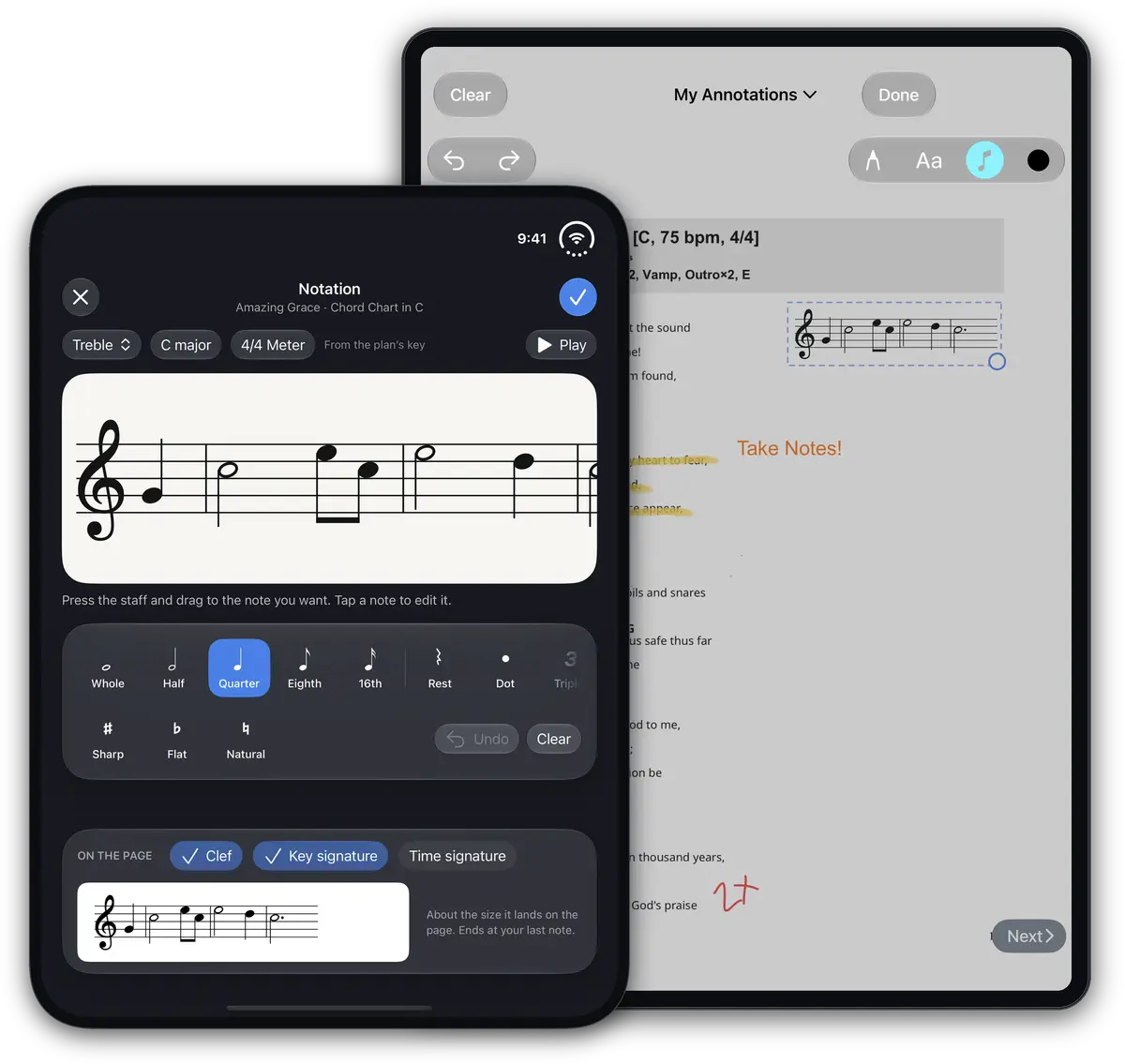
Notate melodies on your charts
When you need to remember a song's intro hook, the new Notation editor has you covered. It sits next to Pen and Text in annotation mode so you can jot down melody lines more easily. It's made for quick ideas on your charts – smart enough to make your notes look right, but flexible enough to let you put barlines and pickups wherever you want.
Place it anywhere on the page and resize it to fit. If your chord chart was made in Planning Center, quick transpose it and your notation transposes right along with it.
Personal page orders with blank pages
You've always been able to set a page order, but it changed the order for everyone. Now when you save a page order, you have an option to save it just for yourself. You can also add blank pages anywhere. Need to read a scripture or give a longer intro to a song, and your chord chart has no room to write it down? Drop in a blank page right where you need it and write your notes there.
Other PDF optimizations
Faster page turns: tapping the left or right edge turns the page twice as fast. Double tap still works in the center of the page to quickly get back to the order.
Two-finger swipe: in landscape, if you've chosen the setting to turn two pages at a time, you can now swipe with two fingers to turn just one page. This helps when the page on the right is the first page of a two-page song. You can now slide it over to the left with a two-finger swipe to see both pages on one screen.
Song info at the bottom of the page: the key, meter, BPM and next-song preview are now easy-to-spot buttons. Tap and hold one to choose what it shows, no trip to Settings needed.
Edit and follow song sequences
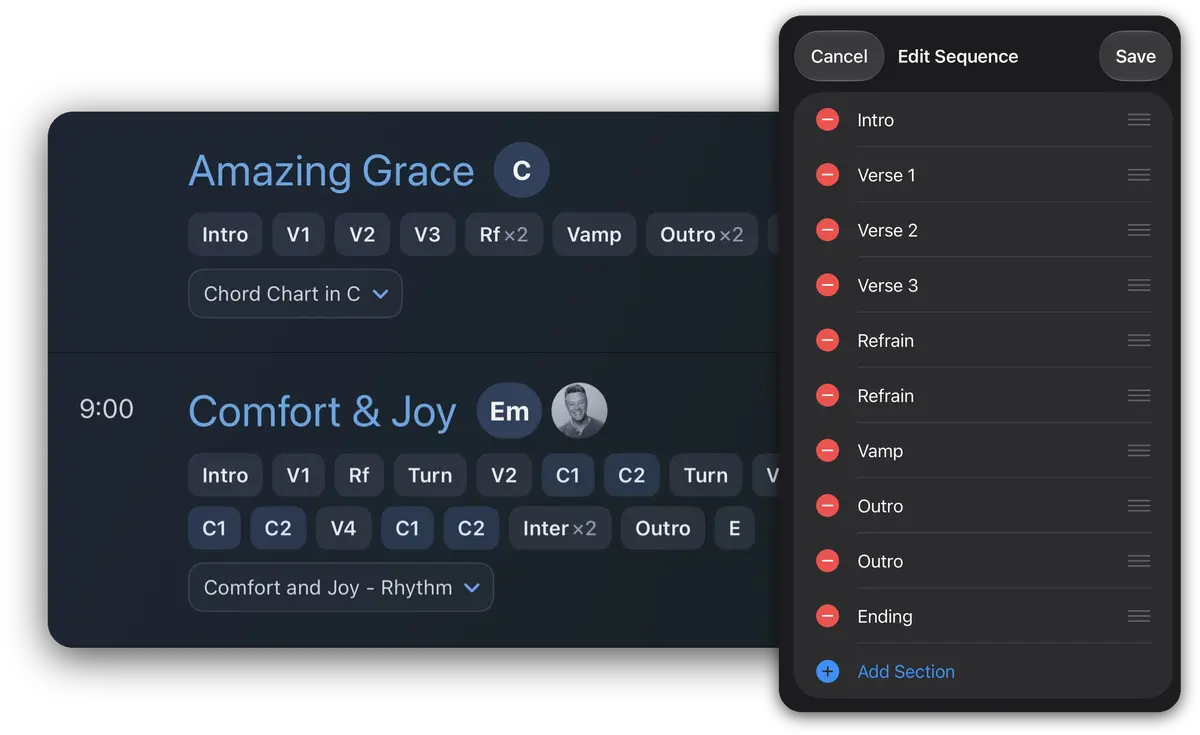
Song Editors can now change a song's sequence right in Music Stand. Sequences in the order are easier to follow, too: each section gets its own block, and choruses are tinted blue. Drummers and anyone else following the sequence can tell sections apart at a glance and find the chorus fast, even in a long sequence.
A cleaner media player
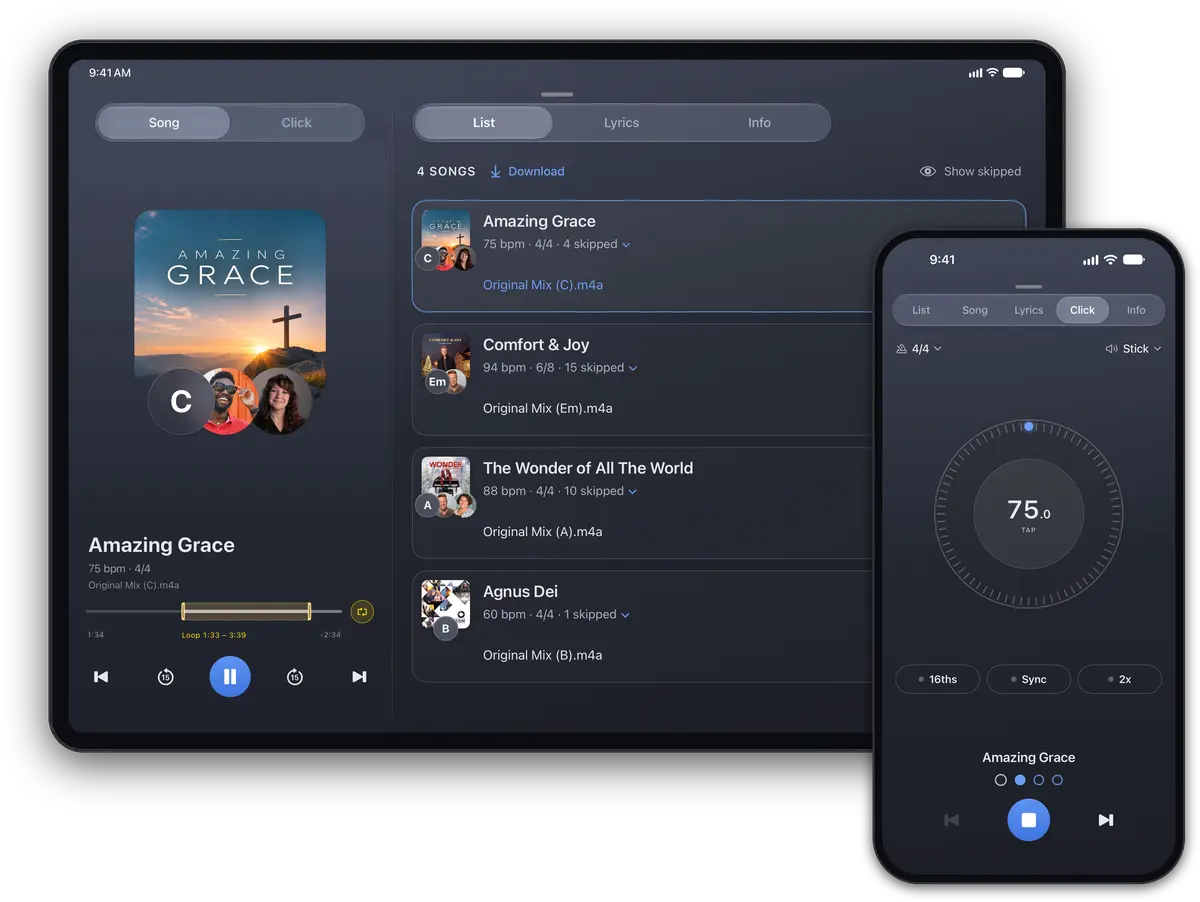
The media player has a simpler new look with a button to hide skipped files so they don't clutter your view. Song leaders now show as avatars along the bottom of each song's album art, right next to its redesigned key. And the metronome, which was always there but a little hidden, now has its own Click tab.
If you're leading a song, you'll always see your avatar and any co-leaders on it. To see the leaders on every song, turn on the Leader column in set list options.
Respond to your schedule and see your teams
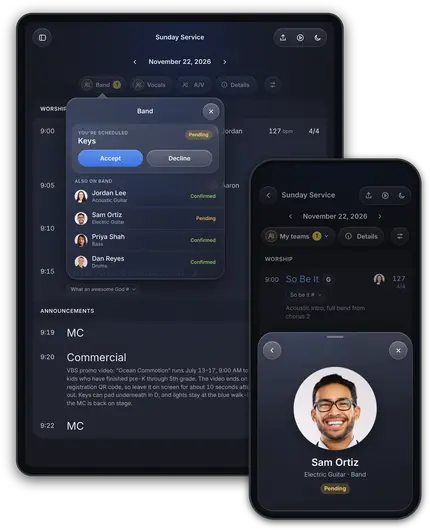
Every team you're on now shows at the top of the order. Tap one to see your position and who else is serving with you, and tap anyone there, or in the Leader column, to see a bigger photo.
When you have a pending request, a yellow badge lets you know it's waiting on you, and you can accept or decline right there. Split teams can answer each service time separately, and teams that use volunteer replacements will ask who's covering for you, just like in Services.
Your perfect set list
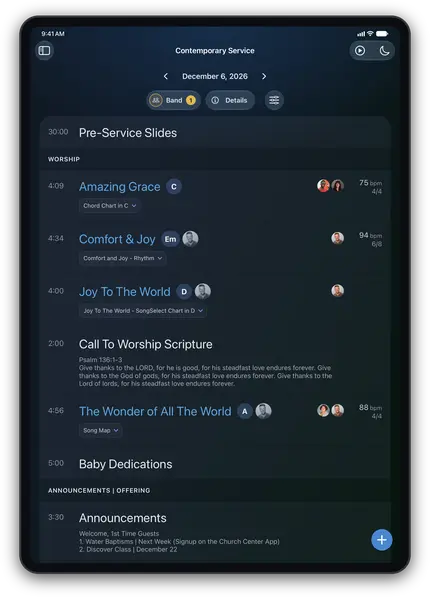
The set list has a new polished design that also supports the iPhone Duo. Tap the Details button at the top for the plan's title, service times and notes. Next to that is the set list options menu where you can show or hide leaders, tempo, meter, sequence, and item descriptions.
Song leaders are new in Music Stand 6. Turn on the Leader column in set list options to see who's leading each song, and tap anyone there to see a bigger photo. Leaders also show on each song's album art in the media player, so everyone knows who to follow.
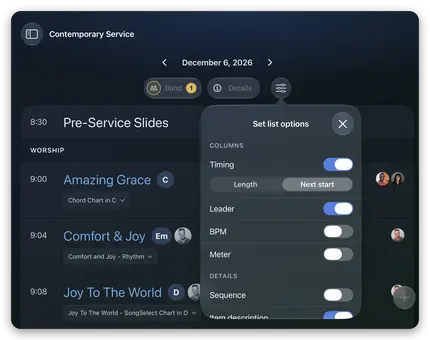
The Timing column used to always show each item's length. Now you can turn it off completely, or switch it to start times to see when each item is planned to begin. If your plan has more than one service time, the column moves on to the next service once the current one finishes.
Catch up on Music Stand 5
If you missed it, we recently released Music Stand 5 that brought faster PDF rendering, and the ability to Invert PDFs for light text on a dark page, and more. To switch appearance, tap the sun or moon in the toolbar, or tap and hold on a PDF.
Music Stand 6 is currently rolling out on iPhone and iPad, and Android is coming in the next few weeks. An update this big deserved a new icon, so look for it on your home screen.