
Let me set the scene: You’ve got a staff meeting in an hour. The agenda's buried under 49 unread emails, the meeting is one of six color-coded blocks on today’s calendar, and that care handbook you saved last week is somehow now lost in space.
For staff, admin, and care teams, ministry work extends well beyond Sunday morning, and it rarely happens in one place. When details are scattered across inboxes, calendars, and text threads, coordination unravels fast.
Groups gets everyone on the same page—literally. Your admin and staff teams share one private space to find files, talk things through, and see upcoming meetings, so coordination chaos becomes a distant memory.
Know where each group belongs
Knowing where to begin building a shared resource space for your staff and admin groups is the first hurdle.
Here’s a simple rule: if your team serves on a set schedule, like worship team rotations, weekend kids volunteers, or communion servers, it belongs in Services. If your team meets regularly to plan, make decisions, or care for others without a set service schedule, use Groups.
Still not sure? Organization administrators can open the Teams & Groups tab in People to see every team and group in one place. Click New team or group to compare the two side by side, then go straight to creating it in the right spot.
It’s easy to default to Services for every team, but Groups gives internal teams like pastoral staff, elder boards, and ministry leadership the tools to coordinate dates, notes, resources, and People information. And because each group is private, sensitive information stays with the people who need it.
Share your group dashboard
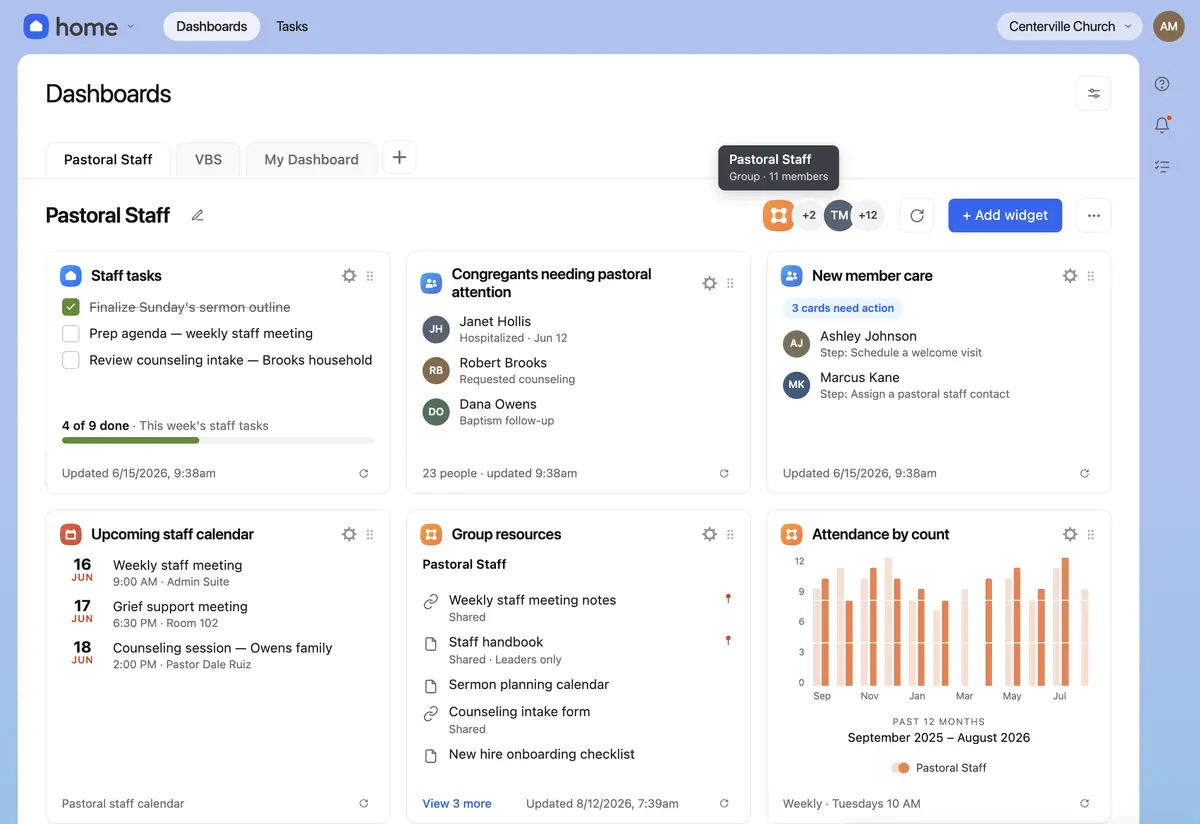
Shared dashboards in Home give your group a common launchpad, so no one has to build their own dashboard from scratch. Leaders can add widgets for the tools their teams need the most: tasks, upcoming Calendar events, group files, meeting attendance metrics, people who need care, and more.
Now you can connect your group directly to a dashboard instead of adding members one by one. New members get access automatically, and anyone who leaves the group loses it without you lifting a finger.
Here’s how to get your group’s shared dashboard up and running:
Create a new dashboard in Home.
Add widgets for the tools your group needs, like Calendar for recurring meetings and the resources widget for shared files.
Invite your group as collaborators, either as viewers or dashboard managers.
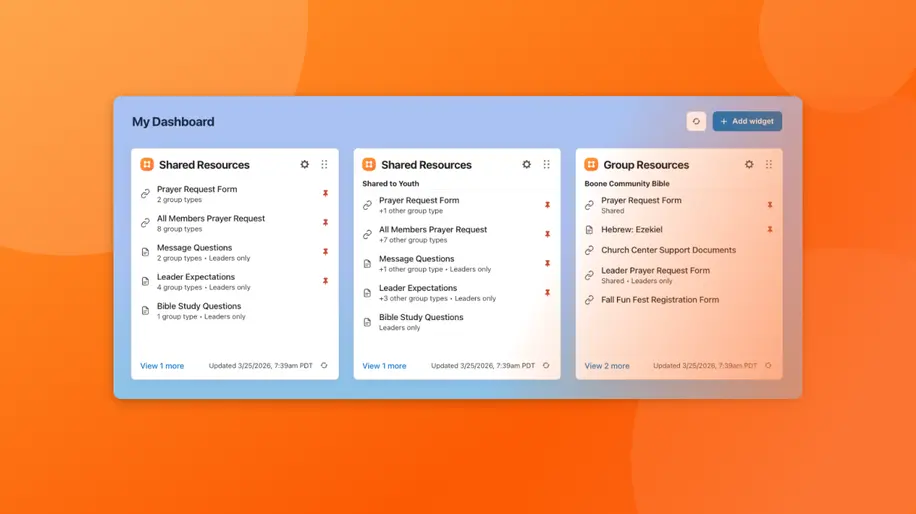
Until now, finding care guidelines, meeting notes, or agendas meant digging through your group's files on the Groups page. The new resources widget cuts out those extra steps by letting you pin important documents from your groups right to Home. An elder who also serves on a counseling team, for example, can see files for all their groups at once. You'll also see updates as they happen, so you have the latest version of that onboarding document before your next meeting.
Skip the email chains with Chat and DMs
Conversations stay on track when they live right next to the resources they’re about. With chat in Groups, you can talk with your group and pull up the files you need without switching apps. And when something’s only meant for one person, like care details about a specific member, a DM keeps it between the two of you.
Try it with your group
Ready to give your staff and admin groups a home? Here’s how to make the most of the newest updates to Groups:
Share dashboards with groups: Connect your group to a shared dashboard so every member has access from day one.
Add the Groups resources widget: Encourage members to add the resources widget to Home and pin their most used documents.
Start a chat: Move your next conversation out of your inbox and into Chat, right next to your group’s resources.
Remember that staff meeting in an hour? With Groups, the agenda, meeting details, and even that care handbook sit side by side on your group’s shared dashboard. Now, you’ve got 59 minutes to spare.