

Big News! We’re introducing a new feature, Song and Item Leaders, our #1 most requested feature. You can now assign a specific person or position directly to a Song or Item within your plan, eliminating the need to manually type names into notes (unless you still prefer that method!).
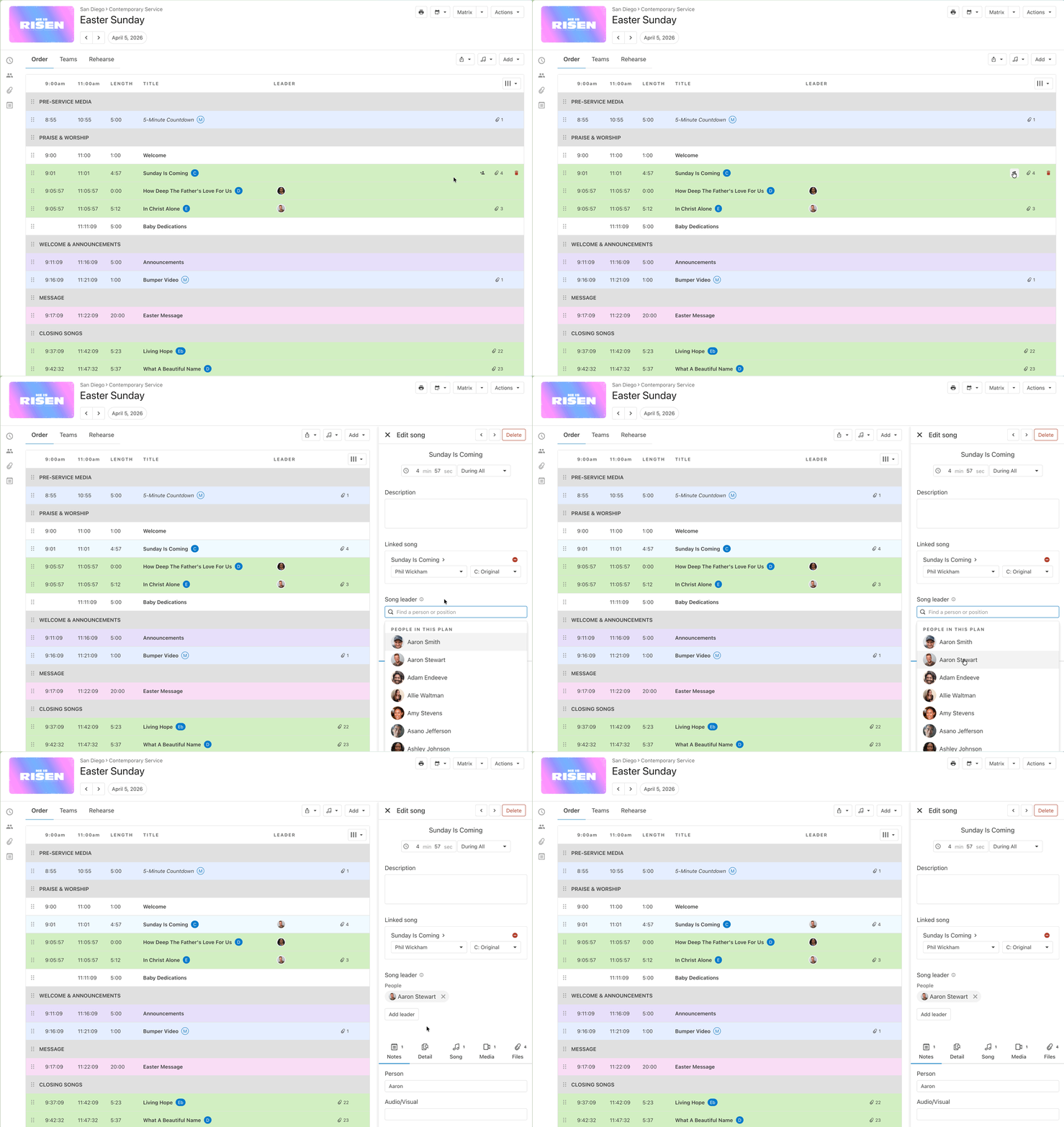
This new feature provides clarity, ensuring responsibilities are always current and cutting out the hassle of manual updates.
How this improves your planning
One clear place to assign who is leading any song or item
Position-based assignments update automatically when the schedule changes, no re-typing names.
You will always see the items you are leading directly within the plan. You also have the option to show or hide the names of all other leaders for an item.
Assignments are fully supported in Plan Templates, so rotating teams stay aligned automatically.
How it works
When in a plan, hover over an item and click the new leader icon.
:quality(75))
Within the drawer assign any scheduled person within the plan or select a position to add to the item.
:quality(75))
If you assign a position, whoever is scheduled to that position will automatically appear as the song or item leader.
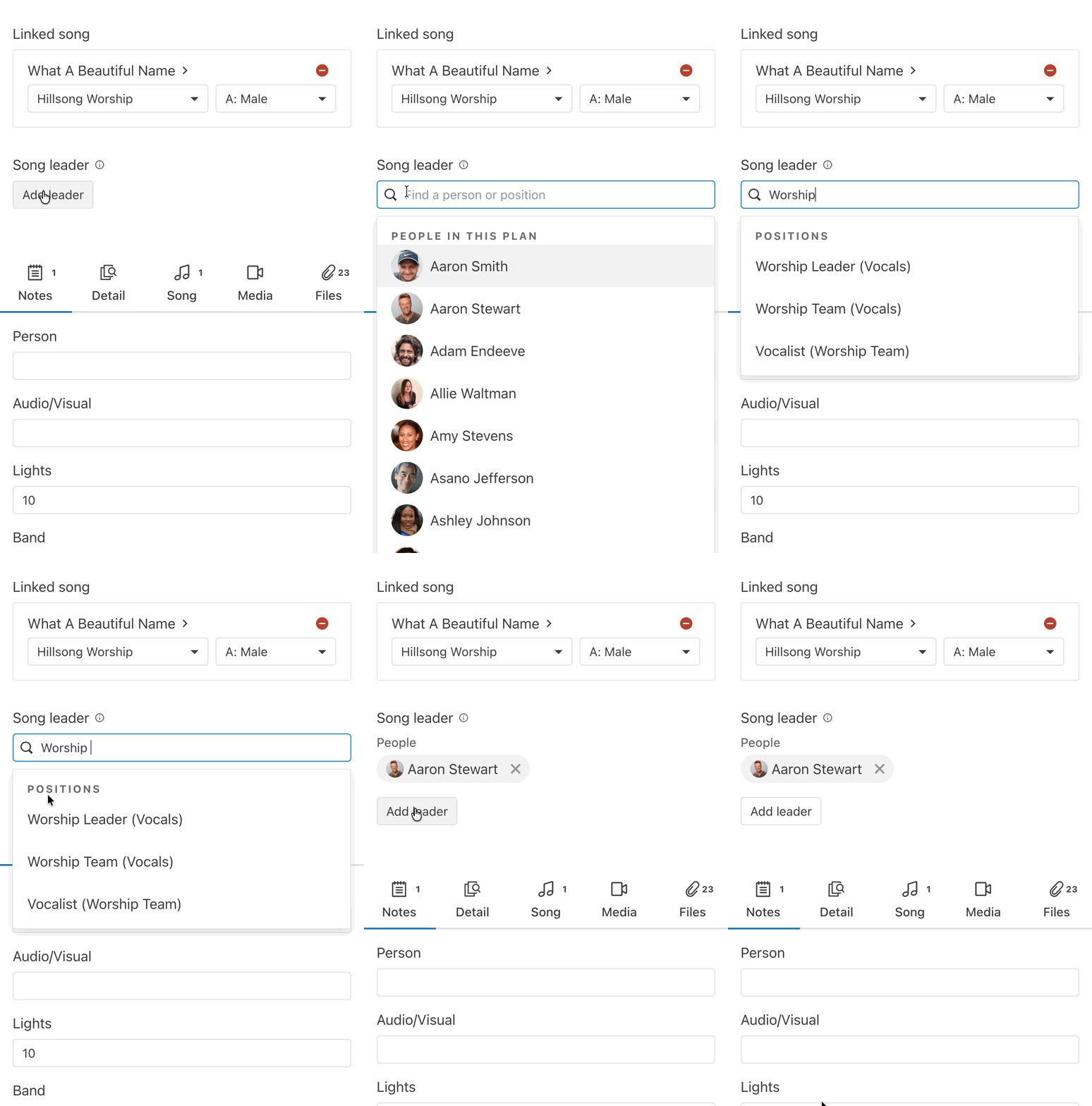
If the schedule changes, the assignment updates automatically, no more re-typing names.
See what you're leading (and what others are)
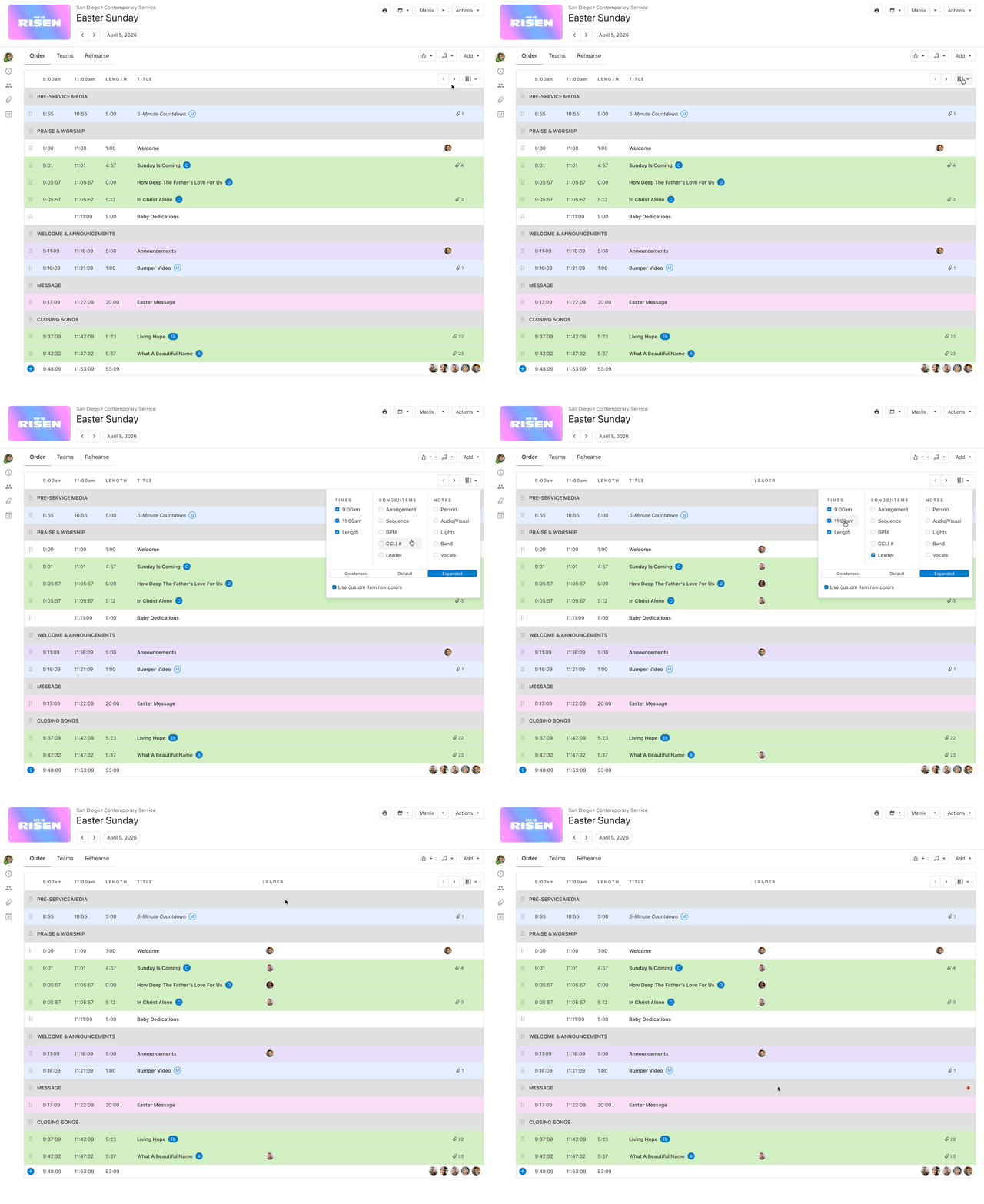
Leader visibility is built right into your order of service:
Items assigned to you always show your avatar right-aligned in the plan.
Toggle the new "Leader" filter to show or hide assignments for others.
Scheduling and reminder emails
Any song or item that you are leading will be included within both your scheduling and reminder emails.
:quality(75))
Works with templates
Song/Item Leader assignments are fully supported in Plan Templates. For best results, assign a position in your template. When the template is applied to a plan, the correct scheduled person will automatically be assigned based on that position making templates even more powerful for rotating teams.
:quality(75))
Works with plan reports
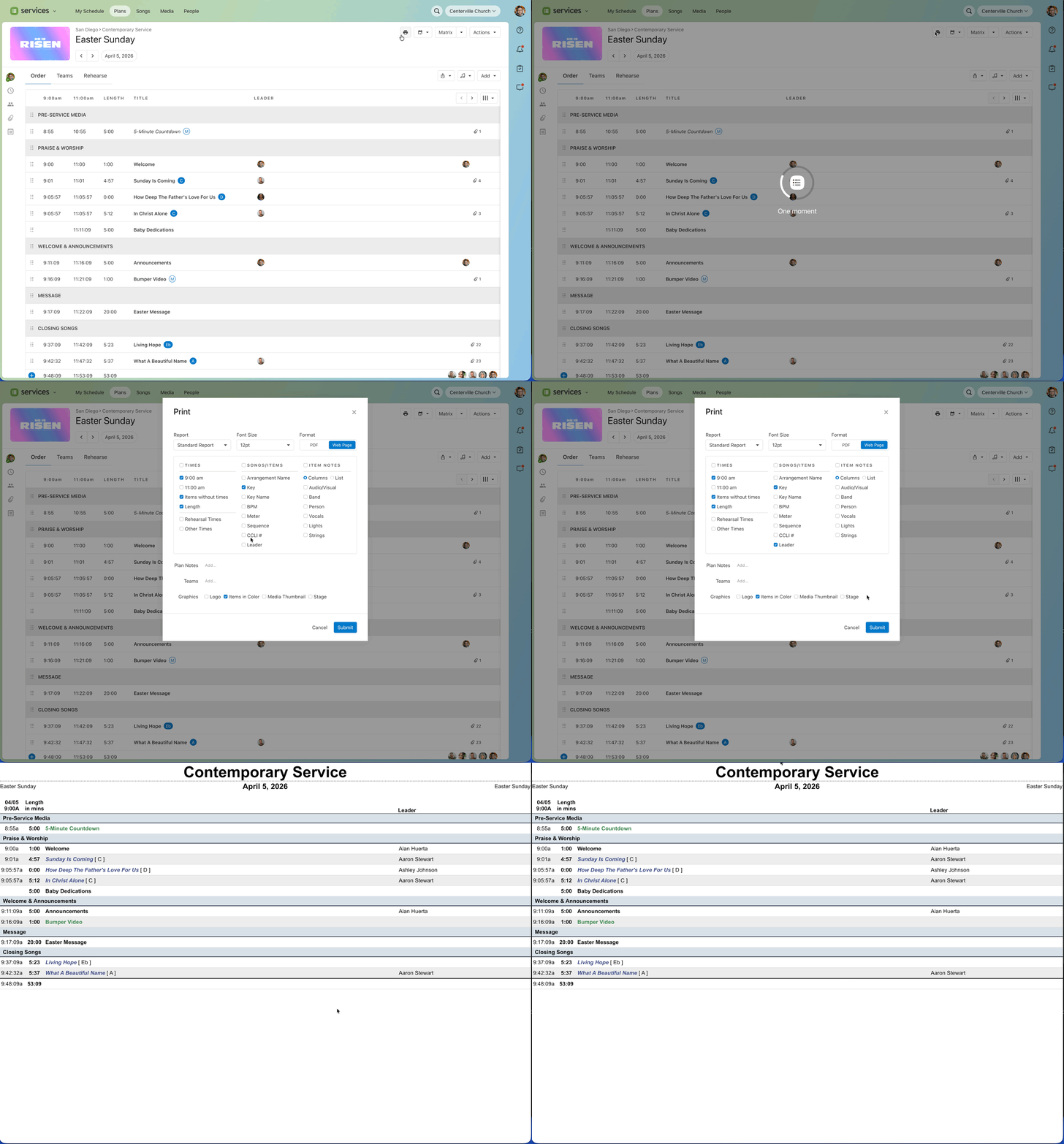
To include the new Leader feature when printing your weekly order of service, ensure the Leader option is selected in the Plan Report settings. This will display all assigned Leaders next to their associated song or item.
Why this matters
Previously, many churches used the "Person" item note to indicate who was leading something. But since it was just text, names had to be entered manually, schedule updates didn't carry over, it created duplicate work, and leaders weren't reliably visible in reports or in the plan itself. Now, assignments are directly tied to your plan people and positions, so everything stays aligned.
Note: You can still use Person item notes to communicate jobs-to-be-done, mic colors, or any other context that doesn't need a structured assignment.
Try it out
Open any plan in Services, hover over a song or item, and click the new leader icon to make your first assignment. You'll see leader avatars appear right in your order of service, and your team will always know who's responsible for what.
Coming soon to the mobile app!
💚 Team Services