

Every week, many church bookkeepers open a payout report and enter it into QuickBooks by hand. With our new QuickBooks Online integration, now in beta, you can connect once, map funds and signups to your chart of accounts, and turn each payout into a journal entry with one click.
Connect QuickBooks Online from Add-ons
An organization administrator can connect QuickBooks Online in Account settings. It takes just a few seconds.
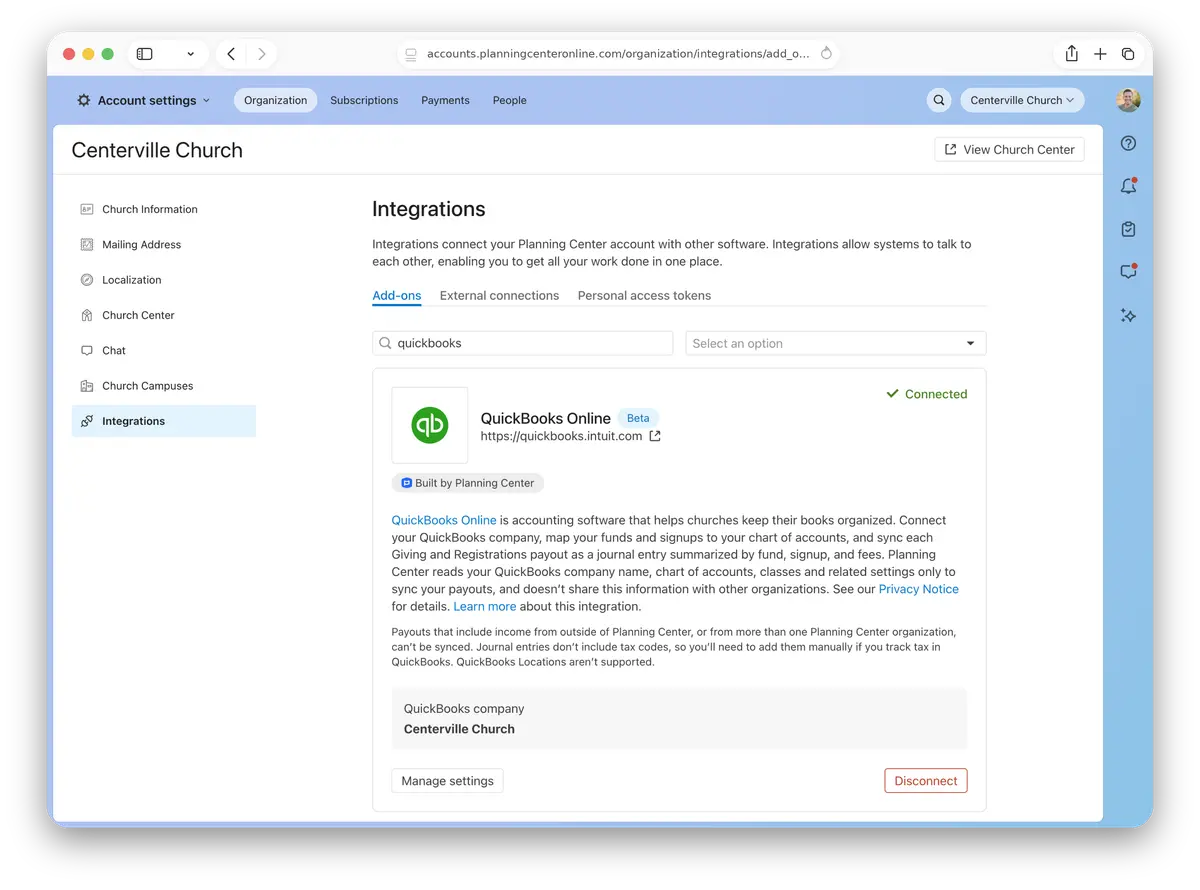
One company per organization: each Planning Center organization connects to one QuickBooks Online company.
Who can do what: Organization administrators connect and disconnect. Organization administrators, Giving administrators, and Giving bookkeepers can set up mappings and sync payouts.
Payments first: The add-on becomes available once your organization has finished setting up payments in Planning Center.
Map funds and signups to your chart of accounts
Once connected, there will be a new QuickBooks Online tab under Payments. Choose the bank account your payouts land in and an expense account for processing fees. Then pick an income account for each fund, and choose whether all your signups go to one account or each signup gets its own.
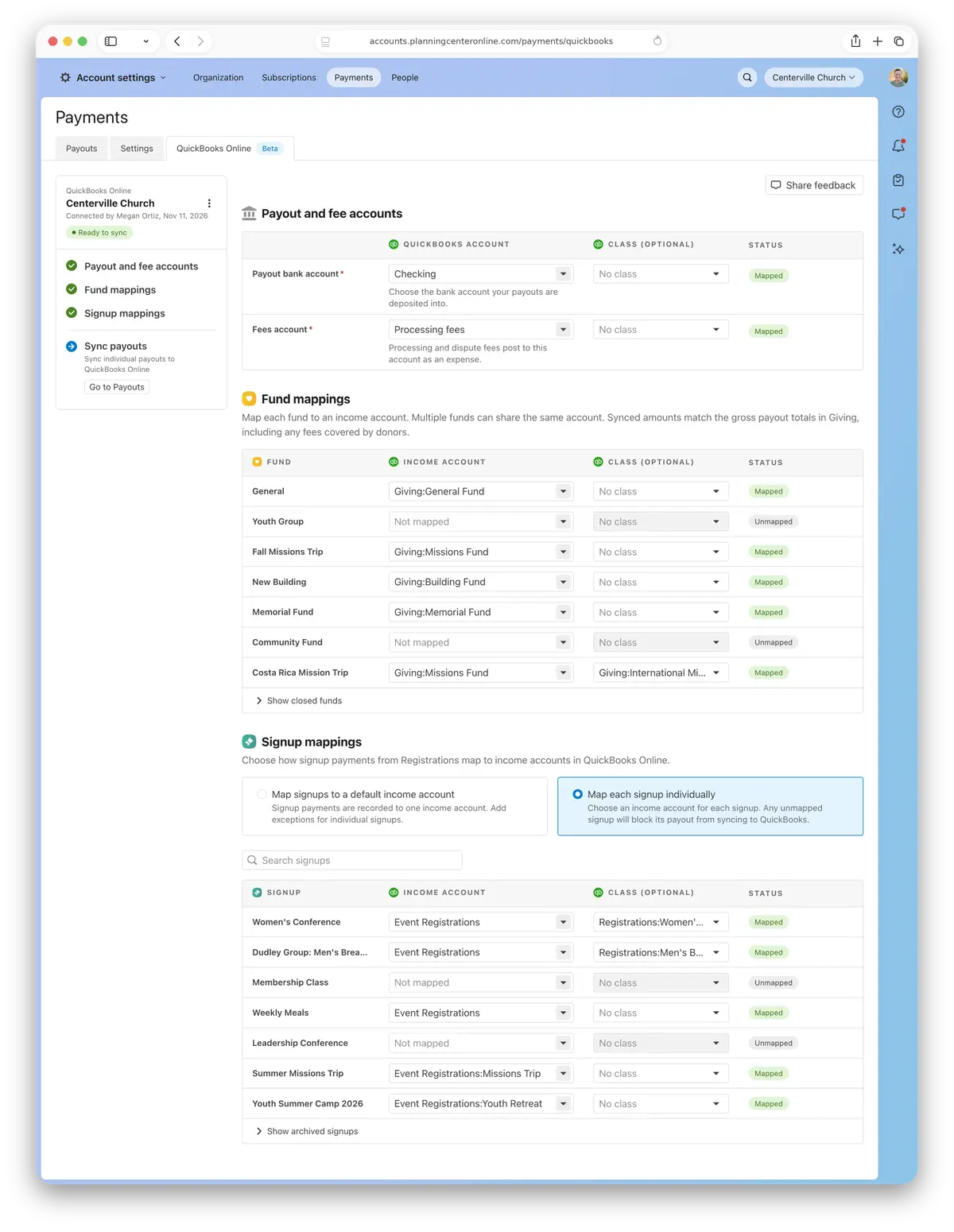
Add classes if you use them: when class tracking is on in QuickBooks, you can optionally add a class to any mapping.
Finish at your own pace: mappings save as you go, and a fund or signup only needs a mapping once a payout includes it. The tab shows which ones are needed.
Renames won't break anything: renaming an account in QuickBooks or a fund in Giving keeps its mapping. If an account becomes inactive in QuickBooks, its mapping is flagged so you can choose a new one.
Sync a payout in one click
Open a payout and click Sync to QuickBooks Online. Planning Center creates one journal entry for that payout. It's dated the day the payout arrived and numbered with "PC-" and that date, so it's easy to match with the bank transaction in QuickBooks.
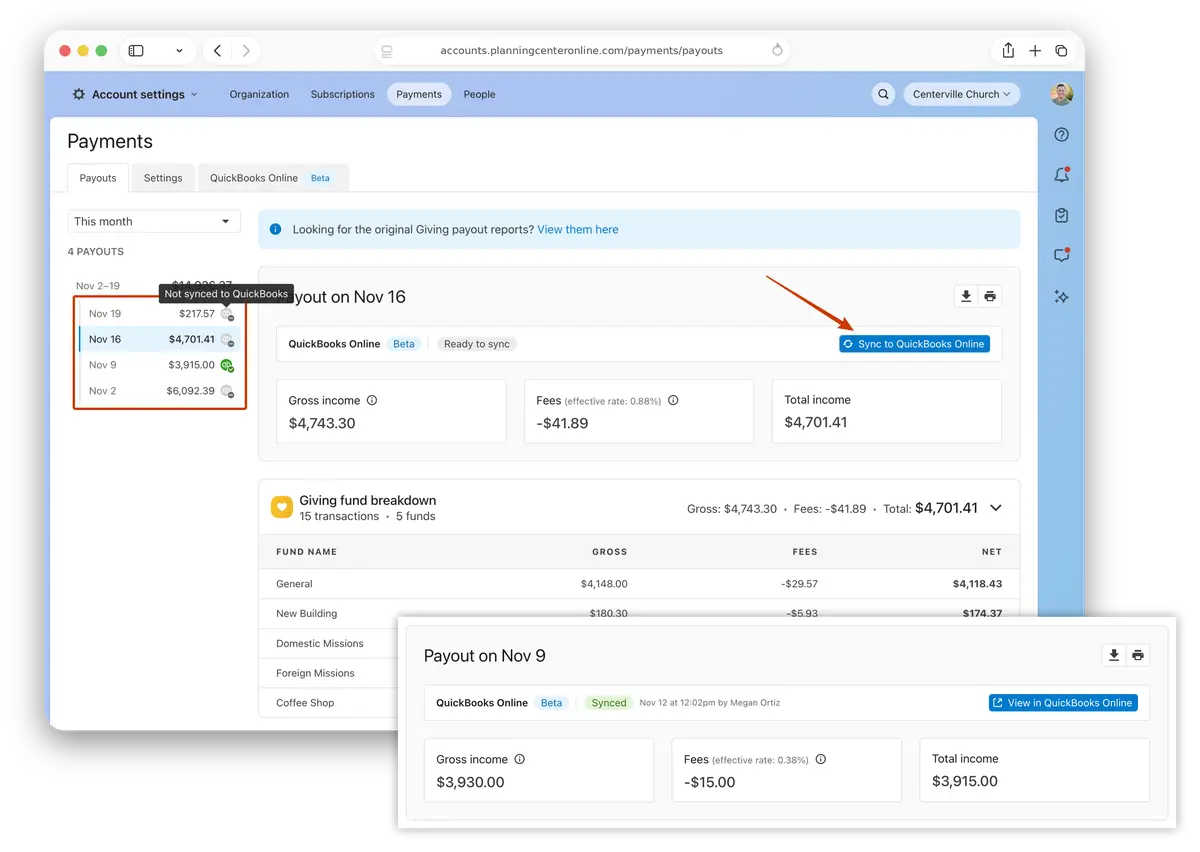
See where every payout stands: the payout list shows whether each one is synced, not synced, or failed.
Know who synced it: a synced payout shows who synced it and when, with a link to the entry in QuickBooks Online.
Fix things before you sync: if a payout needs something first, like an account mapping for a new fund, it tells you what's missing and where to fix it.
What the beta doesn't do yet
A few things aren't supported yet. Anything that doesn’t sync can still be entered in QuickBooks by hand.
Payouts can’t automatically sync if they:
include income from outside of Planning Center, or from more than one Planning Center organization
are from more than a month before you connected QuickBooks
are in a currency other than your QuickBooks home currency
Cash and check batches from Giving aren’t supported yet.
QuickBooks locations aren’t supported yet.
Journal entries don’t include tax codes, so if you track tax in QuickBooks, you’ll need to add them manually for now.
Tell us what you need
Check out our help article to learn more. If something doesn't fit how your church keeps its books, use the Share feedback button on the QuickBooks Online tab or the add-on in account settings. Your feedback helps us decide what direction to take this in next!
💛 The Giving Team