

If you’ve ever had the same group of people serving in multiple places, like Tech, Choir, or Kids that serve for weekend services and midweek services, you’ve probably felt the pain of duplicating Teams just to make scheduling work. That duplication creates extra admin work, and it can be confusing for volunteers when they see the same Team name multiple times in their profile.
Not anymore, with this update, Teams are now their own “thing” in Services and you can assign a single Team to multiple Service Types (or to no Service Type at all). That means less duplication, a cleaner hierarchy, and a more “people first” way to manage your Teams.
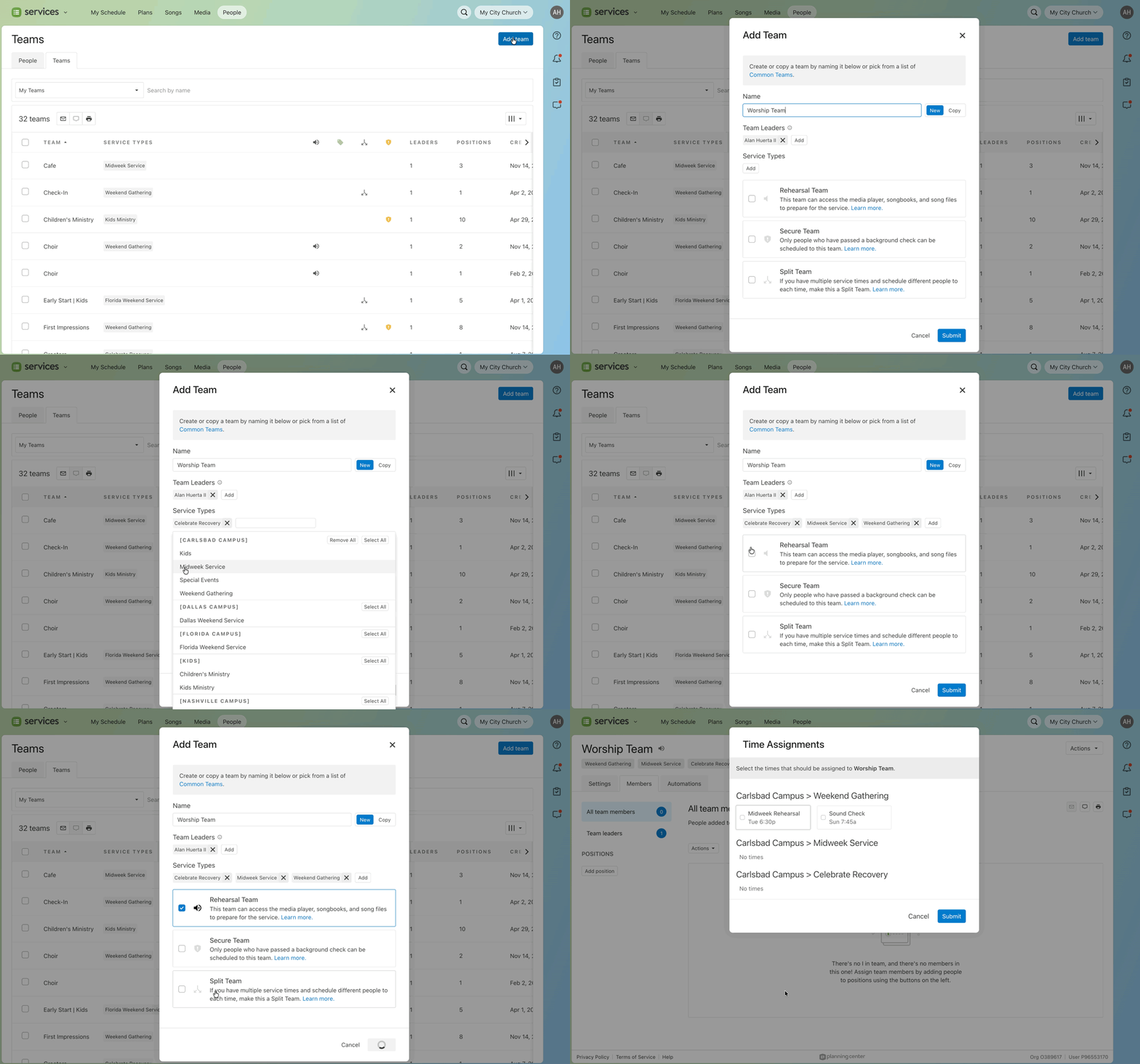
How this improves team management
One Team, multiple Service Types (or none), with a single unified Team identity.
Create Teams from the Teams page, not only from inside a Service Type.
Assign Service Types when creating or copying a Team (multi-select)
Assign Service Types from within the Team Settings page.
Service Type badges now appear in key places (like Team settings and people views) so it’s clear where a Team is used.
Teams Index Page improvements: the Service Types column now reflects multiple Service Types, and Last Scheduled is calculated across all Service Types for that Team.
How it works
Service type section when creating a team
When you create or copy a Team, you’ll see a new Service Types section where you can assign more than one Service Type.
If you create a Team from within a Service Type, that Service Type is pre-selected (and you can add more).
If you create a Team from the Teams page, the Service Types field starts empty, so you can create a Team first, then assign Service Types if/when you need to later.
:quality(75))
Permissions note: You can only add a Service Type to a Team if you have permission to manage that Service Type.
A clearer teams index page
Teams can be shared across Service Types, or not tied to one at all. To make that easier to understand at a glance, the updated Service Types column shows which Service Types each team is connected to.
Previously, Teams could only be created from within a Service Type. You can still do that, or you can now create a Team directly from the Teams index.
:quality(75))
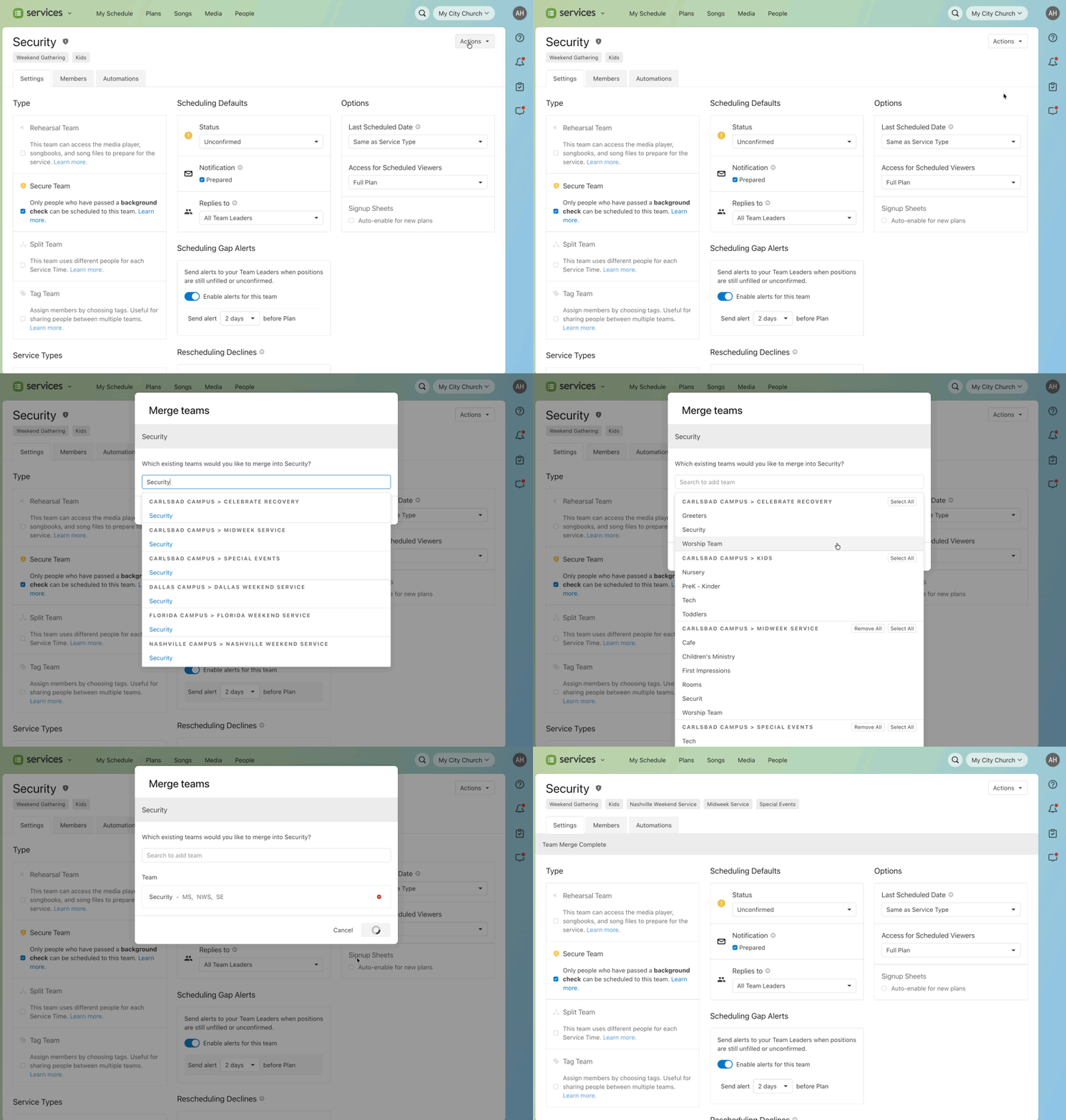
Merge teams to clean up duplicates
For many churches, the real transition path here is merging the duplicate Teams they had to create in the old world.
With this update, Merge Teams works across all Service Types (not just the Service Type you’re currently viewing), so you can combine redundant Teams into one.When you merge Teams that live in different Service Types, the resulting Team will be assigned to both Service Types, giving you a single Team moving forward.
Why this matters
This update makes it easier to manage Teams the way churches actually think about them:
Less admin work (no more recreating the same Team across multiple Service Types).
Less confusion for volunteers (fewer duplicate Team names in their profile, chats, and preference management).
A more flexible structure that supports shared Teams across ministries, campuses, and services.
People First option allows you to set up a team immediately, independent of a specific Service Type. This option streamlines the process of assigning people, enabling quick communication before scheduling begins.
Try it out
Head to the Teams page in Services to create a new Team, or open an existing Team and assign additional Service Types. You’ll see Service Type badges throughout the UI, making it easy to understand where a Team is being used.
💚 Team Services