

You already use Bulk edit to update visibility, enrollment, tags, and more across multiple groups at once. Now you can enable or disable chat for an entire batch of groups in a single step.
How does it work?
:quality(75))
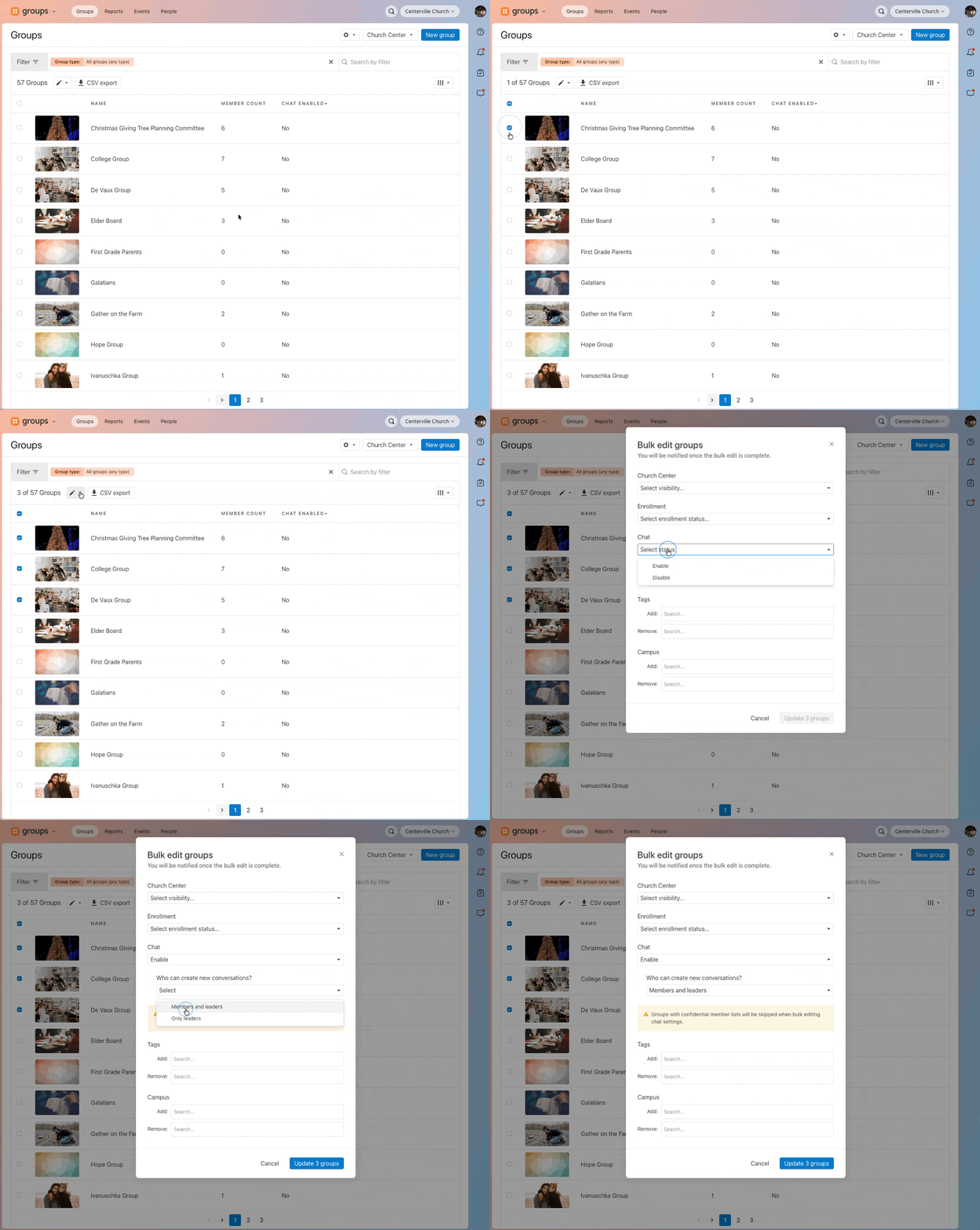
Head to your groups list, select the groups you want to update, and click the pencil to open the Bulk edit menu. In the new Chat section, choose Enable or Disable.
If you enable chat, you’ll also choose who can create new conversations: Members and leaders or only leaders (Default).
Click Update, and you’re done.
Why is this helpful?
Until now, enabling chat meant opening each group individually and flipping the setting one at a time—fine for a group or two, but painful for a whole ministry’s worth. Now you can roll chat out to dozens (or hundreds!) of groups in one fell swoop, with consistent conversation settings across all of them.
Less clicking, more connecting.
💙 The Chat Team