

Organizing events for different ministry teams just got a whole lot easier. You can now create multiple calendars within your Calendar account, giving each ministry team a clear, focused view of their events.
What’s new
With this update, every event now belongs to a calendar—think of it like a team or ministry assignment. Calendars come with a name, description, and color, so you can quickly identify which team owns which event at a glance.
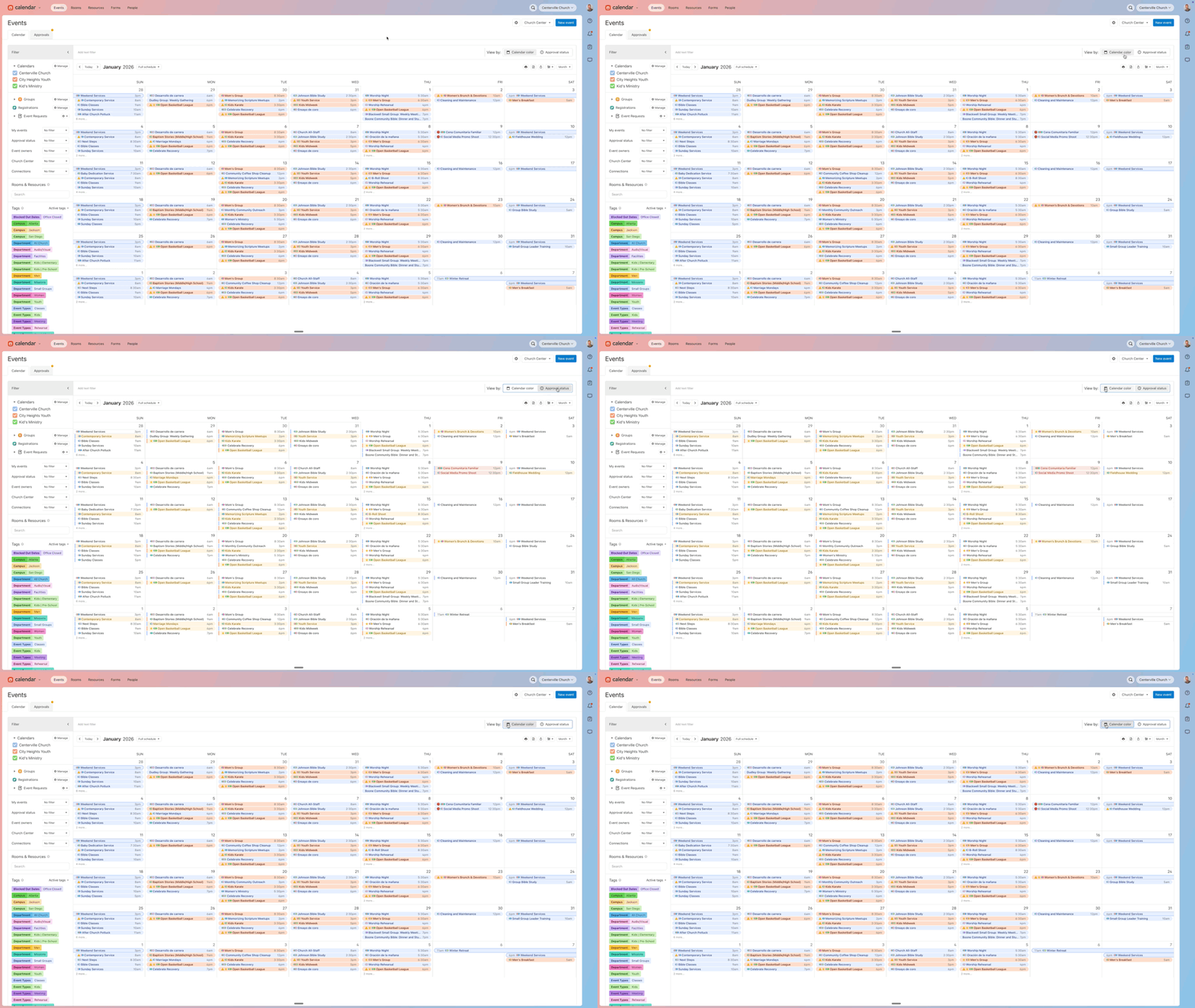
We've also updated your filter bar to make it easier to swap between different views using calendars. You'll find a new “calendars” section at the top where you can toggle between different ministry views, and you can even color-code your month view by calendar.
Getting started
To create your first calendar, head to the new Calendars tab in your settings. Click “Add new”, then give your calendar a name (like "Children's Ministry" or "Young Adult Ministry"), add an optional description, and choose a color.
:quality(75))
Don't worry about your existing events—we've already created a default calendar for your organization with all of them included. You can reassign events to new calendars anytime using the calendar property on each event, or use our bulk edit tool to move multiple events at once.
Once your calendars are set up, use the new “calendars” section in your filter bar to show or hide specific ministry views. Click the toggle on the right side of the filter bar to switch between coloring events by approval status or by calendar.
Why this matters
It can be tough to stay organized when your church has a lot going on. Whether you're coordinating multiple ministries or just want a cleaner way to organize your schedule, multiple calendars give you the flexibility to tailor Calendar to your church's unique needs. This feature works hand-in-hand with tags, so you can continue using tags to organize events by type, campus, or other details, while calendars help you manage team ownership and visibility.
❤ Team Calendar